How to Do Hair Masking in Photoshop, Version 27 (Beta)
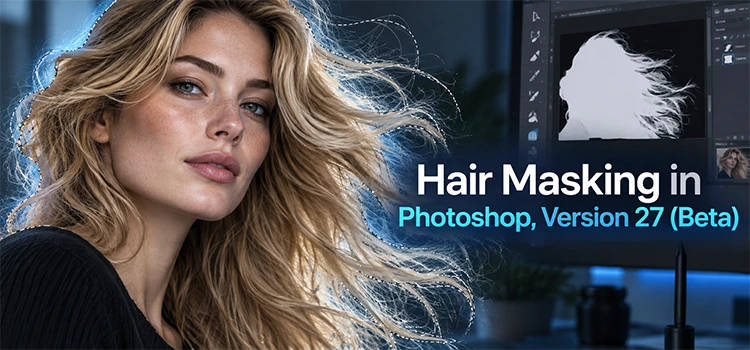
“Hair masking in Photoshop Beta 27 uses AI to select hair, remove backgrounds, and fix edge halos with Enhance Edge. It saves editors time, though it also has credit costs and limits on high resolution images with fine hair detail.”
Photoshop Beta 27 brings a fresh way to handle one of the hardest tasks in editing. Hair selection has always been tricky. Loose strands, flyaways, and busy backgrounds make clean cutouts difficult. This new version adds tools that speed up the process and reduce manual work. Photographers, designers, and teams that offer photo editing services can now finish hair masking jobs much faster than before. This guide walks through every part of the new workflow, from basic selection to the AI powered fixes, so you understand exactly how it works and when to use it.
What Is Hair Masking in Photoshop Beta 27?
“Hair masking in Photoshop Beta 27 is a background removal process that uses the Select Subject tool along with AI features like Enhance Edge. It detects hair strands, builds a mask, and cleans up rough edges automatically.”
Hair masking means cutting out a subject while keeping the fine details of hair intact. In Beta 27, you select your subject layer and click Remove Background from the contextual taskbar. This triggers the new Select Subject engine. It reads the image and creates a mask that includes most hair strands. The result looks strong on simple backgrounds. On busy or high contrast backgrounds, you may still see rough edges. That is where the next tools come in.
Why Do Halos Appear After Removing the Background?
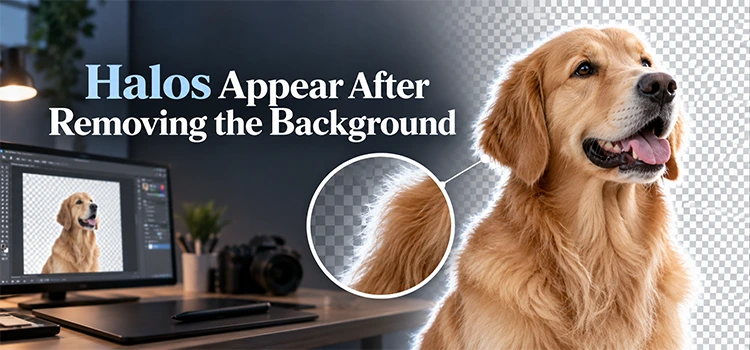
“Halos appear because the mask picks up small traces of the old background color around each hair strand. This happens more often when the new background color contrasts sharply with the original one, like placing a subject shot on white onto black.”
When you remove a background, the edge of the mask often keeps a thin line of the old background color. This line is barely visible on a similar colored background. It becomes obvious the moment you place the subject on a different color. For example, a subject shot on a bright background will show clear white or gray halos when placed on black. This is a normal side effect of automatic masking, not a flaw unique to Photoshop.
How Does Enhance Edge Fix Hair Masking Halos?
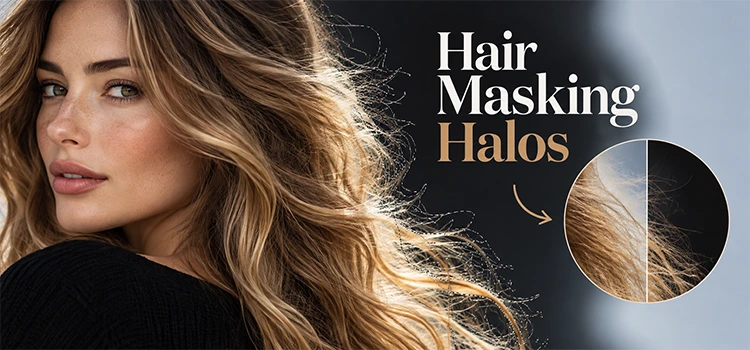
“Enhance Edge uses AI to generate and expand the edge pixels of your masked subject while keeping the shape of the mask unchanged. It fills in missing hair detail around the border without altering the core selection.”
To use Enhance Edge, select your mask layer and open the Properties panel. Click Enhance Edge and let Photoshop process the image. It builds a brand new layer and turns off the old one. The mask shape stays exactly the same. Only the pixels near the edge change. This means the subject area does not shift or distort. The tool simply paints new edge detail so the halo disappears and the hair blends into any background color.
Does Enhance Edge Use Credits or Cost Money?
“Yes, Enhance Edge does use AI credits in the current beta test. One test run used 20 credits from a balance of 1890. Adobe has not confirmed final pricing, and costs may change once Photoshop 27 leaves beta.”
AI processing runs on cloud servers, and that has a real cost for Adobe. Right now, each use of Enhance Edge takes a chunk of your credit balance. You can check your balance from the starry icon at the top of the options bar. During testing, one use dropped the count from 1890 to 1870. This may change before the final release, and it may also depend on your subscription plan. Keep this in mind if you plan to use it often.
Can You Fix Hair Masking Without Using AI Credits?
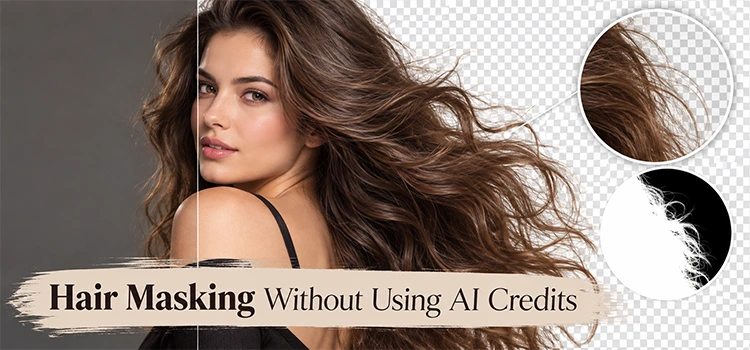
“Yes, Photoshop has a built in option called Decontaminate Colors inside Select and Mask. It fixes halos without using AI credits, though the result looks flatter and less detailed than Enhance Edge.”
If you want a free method, open the mask properties and choose Select and Mask. Scroll to Output Settings and check Decontaminate Colors. Set the amount to 100 and choose New Layer with Layer Mask. This creates a clean edge much like Enhance Edge does, but the texture looks different. Decontaminate Colors tends to produce a flat, solid edge. Enhance Edge keeps more natural texture in each hair strand. Choose based on how much detail your project needs.
What Is the Difference Between Enhance Edge and Decontaminate Colors?
“Enhance Edge keeps natural texture and dimension in each hair strand, while Decontaminate Colors creates a flatter, simpler edge. Enhance Edge looks more realistic on close inspection, but it uses AI credits and has a resolution limit.”
Side by side comparisons show a clear gap in quality. Decontaminate Colors fills the edge with a smooth, single tone. It works, but it lacks depth. Enhance Edge keeps small variations in each strand, so the hair looks real instead of painted. This difference becomes obvious when you place both versions on a plain gray background. The AI version shows dimension in every strand. The non AI version shows one flat line around the head.
Can Hair Masking Tools Be Used to Increase Hair Volume?
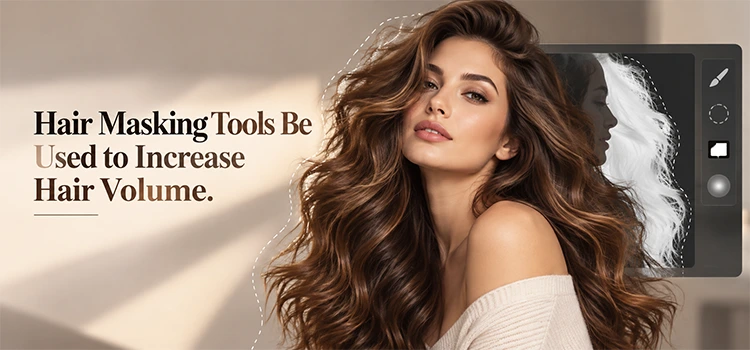
“Yes, turning on the Enhance Edge mask can add extra volume to thin or sparse hair. This is not the intended use, but it fills gaps around the head and creates a fuller look while keeping the background unchanged.”
This is a creative side effect rather than an official feature. Since Enhance Edge generates new pixels around the hair edge, it can also fill in thin spots. If a subject has fine or sparse hair, turning on this mask adds extra volume around the head. The background stays the same, and only the hair area changes. This trick works well for portrait editors who want a fuller look without heavy manual retouching.
Are There Limits to Enhance Edge on High Resolution Images?
“Yes, Enhance Edge struggles with high resolution or highly detailed hair. It can turn sharp, defined strands into a blurry, mushy texture because the AI processes the whole edge at once and has a built in resolution cap.”
This is the biggest weakness of the tool. On images with fine, dense hair detail, Enhance Edge sometimes destroys the sharpness you already had. Before the fix, you might see crisp individual strands. After the fix, the same area turns soft and blurry. This happens because AI models generate results within a fixed resolution limit. For high detail images, traditional tools like the Minimum filter under Filter, Other often give a cleaner result.
How Do You Fix Simple Hair Masking Issues Without AI?
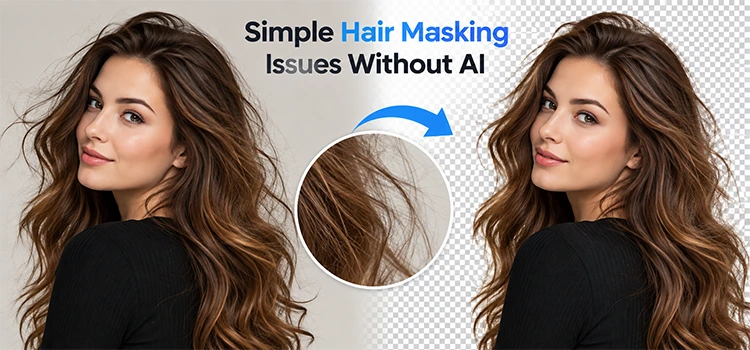
“You can select the mask, go to Filter, Other, Minimum, and increase the radius slightly. This pushes the mask edge inward and removes small halos without using AI credits or changing the resolution of your image.”
For subjects without many loose hair strands, this method works well. Select your mask, then choose Filter, Other, Minimum. Pick Roundness as the shape and raise the radius until the halo disappears, often around 1.0 to 1.2. Click OK. This shrinks the edge just enough to remove color fringing. It will not fix highly detailed flyaway hair, but for simple shapes and edges, it gives a fast, free, and reliable fix.
Is Hair Masking in Photoshop Beta 27 Worth Using?
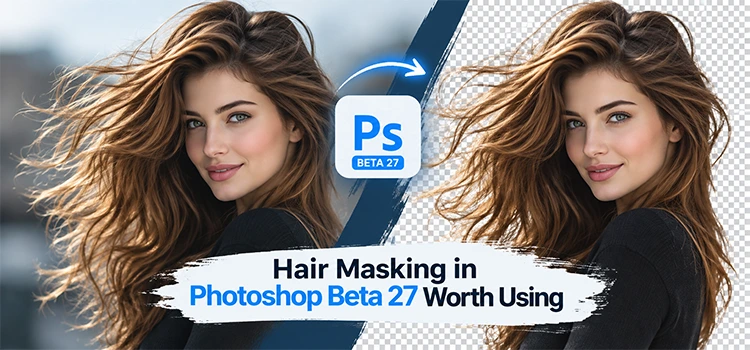
“Yes, hair masking in Beta 27 is worth using for most projects. It saves time on simple to medium detail images. For high resolution, high detail hair, combine AI tools with traditional methods like Minimum filter for the best result.”
This new toolset gives editors more control and more speed. Select Subject handles most of the initial work. Enhance Edge removes stubborn halos when contrast is high. Decontaminate Colors gives a free backup option. None of these tools are perfect on their own, but together they cover most real world situations. Businesses that run photo editing services can use this combination to handle bulk hair masking work with fewer manual steps and faster turnaround.
Frequently Asked Questions
-
What is the main new feature in Photoshop Beta 27 for hair masking?
The main new feature is Enhance Edge, an AI powered tool that expands and fills edge pixels around a masked subject. It removes halos caused by background color contrast without changing the shape of the original mask. It works alongside the improved Select Subject tool, which already does a strong job of detecting hair strands during background removal.
-
Where do you find the Enhance Edge option in Photoshop?
You find Enhance Edge by selecting your mask layer and opening the Properties panel. You can also access it through the contextual taskbar after using Remove Background. Once you select the mask, Enhance Edge appears as an option. Click it, and Photoshop processes the edge using AI, creating a new layer with the fix applied automatically.
-
Does Enhance Edge change the shape of my selection?
No, Enhance Edge does not change the shape of your selection. It keeps the original mask exactly the same and only adds new pixel detail along the outer edge. This means your subject stays intact while the background halo disappears. Photoshop simply generates fresh edge information rather than altering the core selection you already made.
-
How many credits does Enhance Edge use per image?
During testing, Enhance Edge used about 20 credits for a single image, based on a balance that dropped from 1890 to 1870. This number is not final and could change before Photoshop 27 leaves beta. Actual credit use may also depend on image size, complexity, and the subscription plan you have with Adobe.
-
What is Decontaminate Colors and how is it different?
Decontaminate Colors is a built in Photoshop feature found inside Select and Mask under Output Settings. Unlike Enhance Edge, it does not use AI credits. It fixes halos by blending edge colors, but the result looks flatter and less detailed. It works well for quick, free fixes when AI credits are not available or needed.
-
Can Enhance Edge damage high detail hair images?
Yes, Enhance Edge can damage high detail hair images. Because it works within a fixed resolution limit, it sometimes blurs sharp, individual strands into a soft, mushy texture. This happens most often on images with dense, fine hair detail. In these cases, traditional tools like the Minimum filter often give a sharper and more reliable result.
-
What is the Minimum filter and how does it help with hair masking?
The Minimum filter is found under Filter, Other, Minimum. It shrinks the edge of a mask slightly by pushing pixels inward. This removes small color halos without using AI or losing resolution. It works best on simpler hair shapes without many loose strands, giving a fast and free alternative to AI based fixes.
-
Can hair masking tools help increase hair volume in photos?
Yes, hair masking tools can help increase hair volume, though this is not their intended use. Turning on the Enhance Edge mask fills in extra pixels around the head, which can make thin or sparse hair look fuller. The background stays unchanged, making this a useful trick for portrait editors working on volume retouching.
-
Is hair masking in Photoshop Beta 27 useful for photo editing services?
Yes, hair masking in Beta 27 is very useful for photo editing services. It speeds up background removal and hair detail work that once took a long time to do by hand. Combining Select Subject, Enhance Edge, and Decontaminate Colors allows teams to process more images faster while keeping quality high on most standard photos.
-
Should you rely only on AI tools for hair masking?
No, you should not rely only on AI tools for hair masking. AI tools like Enhance Edge work well for many cases but struggle with high resolution, high detail hair. Learning traditional methods like the Minimum filter and Decontaminate Colors gives you backup options when AI results fall short or cost too many credits.
Conclusion
What Should You Remember About Hair Masking in Photoshop Beta 27?
Hair masking in Photoshop Beta 27 is a major step forward. Select Subject handles the first pass. Enhance Edge cleans up halos using AI, though it costs credits and struggles with very fine, high resolution hair. Decontaminate Colors offers a free, simpler fix. Knowing when to use each tool, and when to fall back on traditional filters like Minimum, will help you get clean, natural results every time.