File Formats for Clipping Path: PSD, PNG, TIFF, EPS
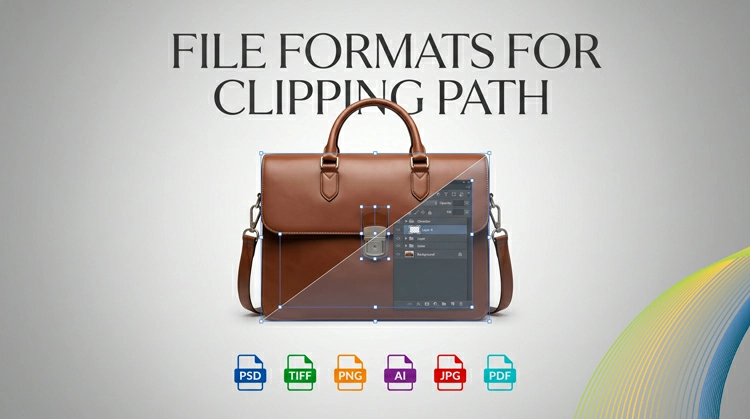
When you do professional photo editing, you know that a perfect clipping path is just half of the job. What is the other half? It is saving your project in the right file format. If you pick an unsuitable image format, you will lose the transparency data, the image quality will suffer, or you will send your client a file that their software will not be able to open.
Having spent years in product photo retouching, e-commerce image editing, and print production, we can assure you that knowing your file formats is not a choice, it is a prerequisite.
Here are four most used file formats for clipping path: PSD, PNG, TIFF, and EPS.
What Is a Clipping Path, and Why Does File Format Matter?
Clipping path is an outline created around a product to separate it from its background, producing a clean cutout for print, and web projects.
The image file format affects transparency support, path editability, image quality, software compatibility, and file size.
The file format you choose after creating clipping path determines:
- Whether transparency is preserved
- Whether the path data itself is retained and editable
- The image quality after saving
- Compatibility with design software and print workflows
- The file size and efficiency for delivery
Now, let’s discuss each format.
1. PSD (Photoshop Document)
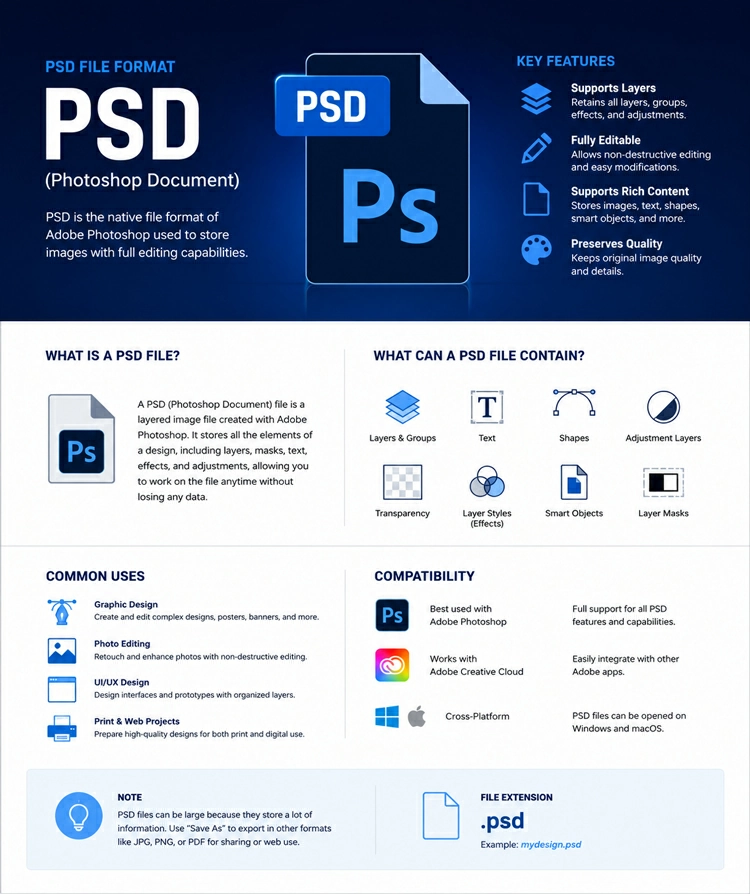
PSD is Photoshop’s native file format for clipping paths. It preserves editable paths, layers, masks, and transparency in a single file. Widely used by designers, retouchers, and eCommerce studios, PSD supports future edits and high-quality workflows.
What Is It?
PSD is the file extension for Adobe Photoshop. It is the software’s native and the standard format in the industry for layered and editable image files. When you save a clipping path in PSD format, you keep everything always- layers masks paths, channel data, and adjustment layers.
Why It’s Perfect for Clipping Paths
A PSD file contains an embedded clipping path stored directly on the Paths panel of the document. Because of this:
- The path is completely editable anytime
- You can save multiple paths within one file
- Layer masks, vector masks, and work paths are all combined smoothly
- 32-bit, 16-bit, and 8-bit color depths are all supported
Transparency Capability
PSD is capable of storing full alpha channel transparency that keeps your clipped-out background as a transparent layer. This feature is necessary for compositing workflows where you can put the image on different backgrounds.
Who Uses PSD?
- Retouchers and photo editors who require providing editable source files
- Design agencies that would make changes even after delivery
- Print production teams working in Adobe InDesign or Illustrator
- E-commerce studios keeping master files for multiple-use assets
Limitation
- Large file sizes (Mostly with many layers)
- Not commonly supported outside the Adobe ecosystem
- Not convenient for web delivery, conversion necessary for online use
Best Practice
It is a good idea to always keep a master PSD file with your clipping path unaltered. Clients who might need to do future editing can be given this file. For the final delivery, export to PNG, TIFF, or EPS according to the situation.
2. PNG (Portable Network Graphics)
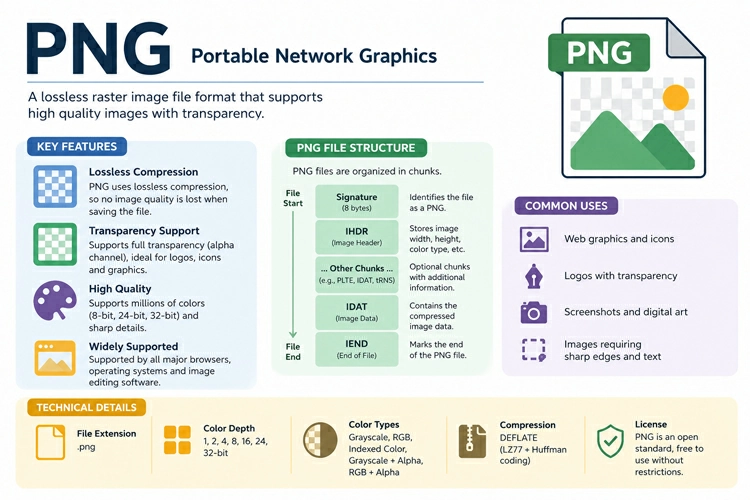
PNG is a popular raster image format known for lossless compression and advanced transparency support. It preserves image quality while enabling smooth transparent backgrounds, making it ideal for clipping paths, eCommerce product images, web design, digital marketing, and UI/UX applications.
What Is It?
PNG is a raster image file type made to be exact for lossless compression and transparent background features on the web. It was developed as a better replacement for GIF and now it is the preferred format for web images with transparent backgrounds.
Why It’s Great for Clipping Paths
If you use a clipping path in Photoshop and export it as a PNG, the clipped part will have a transparent background, perfect for web and digital usage. The PNG file format offers:
- Comprehensive alpha channel transparency (256 levels of opacity)
- Lossless compression, no quality is lost during saving
- 24-bit color (PNG-24) suitable for photos and smooth color gradients
- 8-bit color (PNG-8) usually the choice for images with limited colors
Transparency Support
PNG is probably the most web-friendly format when it comes to transparency. Alpha channel of PNG can produce soft edges, semi-transparent shadows, and smooth anti-aliasing in a very natural way, which is very important when you want the edges of your clipping path to blend seamlessly with a new background.
Who Uses PNG?
- The web designers and developers who put product images on websites
- E-commerce businesses (Amazon Shopify etc.) that require white or transparent backgrounds
- UI/UX designers who incorporate cutouts in interface design
- Digital marketers developing social media graphics and ads
Limitations
- No support for embedded clipping paths the path is rasterized on export
- Not good for print production workflows that require vector path data
- Large file sizes compared to JPEG for intricate photographs
- Does not support CMYK color mode only RGB allowed
Best Practice
In general, keep PNG for any image that will be used digitally or on the web. A transparent background cutout is the easiest and cleanest with a PNG when it comes to online usage. But, for printing purposes, TIFF or EPS are preferable.
3. TIFF (Tagged Image File Format)
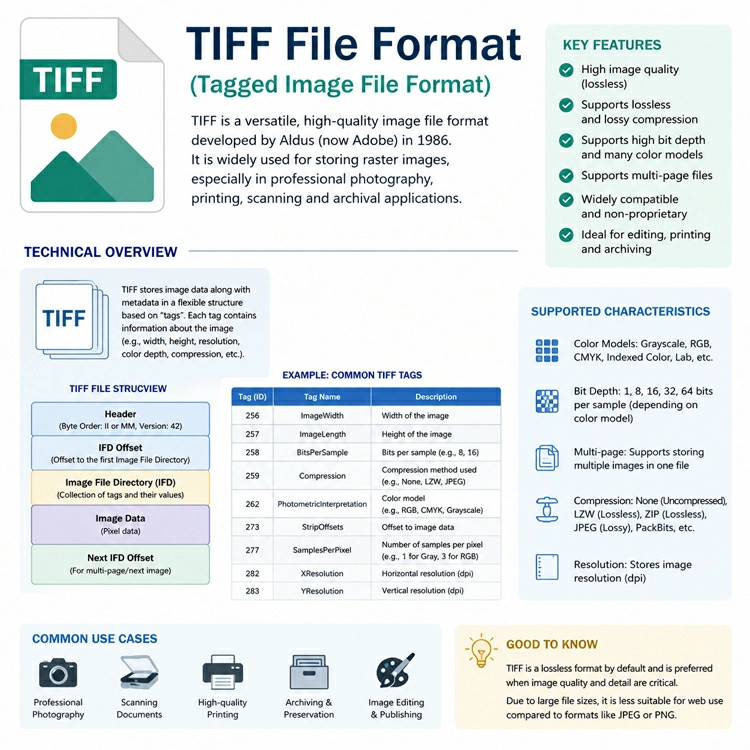
TIFF is a professional raster image format used in photography, publishing, and print production. It supports embedded clipping paths, CMYK color, lossless compression, and high-resolution images, making it ideal for catalogs, offset printing, and design workflows.
What is it?
TIFF is the oldest, most versatile raster image format that is still widely used. It was developed in the ’80s to ’90s and continues to be a favorite among professional photographers, and for scanning and production printing.
Why It’s Ideal for Clipping Paths
TIFF is the only raster format (together with PSD) that allows for embedded clipping paths and can be identified page layout programs like Adobe InDesign and QuarkXPress. This is the reason why TIFF is indispensable in professional print workflows.
When you save a TIFF file with the embedded clipping path:
- The path is kept in the metadata/path data of the file
- Page layout applications can switch the path on to let text flow around the subject or to the background mask automatically
- The picture stays perfect shape quality and resolution
Transparency Support
TIFF carries alpha channels that can give you a transparent background, but it is not the same as PNG. Transparency in TIFF is much more print-oriented than screen. In most print applications, the visible area of the image is defined by the embedded clipping path (not the alpha channel).
Technical details
- It supports 8, 16, and 32-bit color depth
- You may use both RGB and CMYK color modes very important for print
- Compression types include LZW, ZIP, or no compression (all lossless)
- You may save changes to various layers (though not as PSD comfortably)
- Works fine with practically all professional design and print programs
Who Uses TIFF?
- Commercial printers and print production shops
- Magazine and book publishing companies
- Photographers who save archive high-resolution master images
- Press professionals doing offset print preparations
- Product photographers selling images for catalogs
Limitations
- Extraordinarily large file sizes, Most of all without compression
- Not the best for the web because of file sizes and limited browser support
- It is less flexible than PSD (lacks non-destructive adjustment layers)
Best Practice
When publishing pictures for print production, use TIFF with an embedded clip path. Always save CMYK color mode if you send an image to a commercial printer, and utilize LZW compression for taming file sizes without hurting quality.
4. EPS (Encapsulated PostScript)
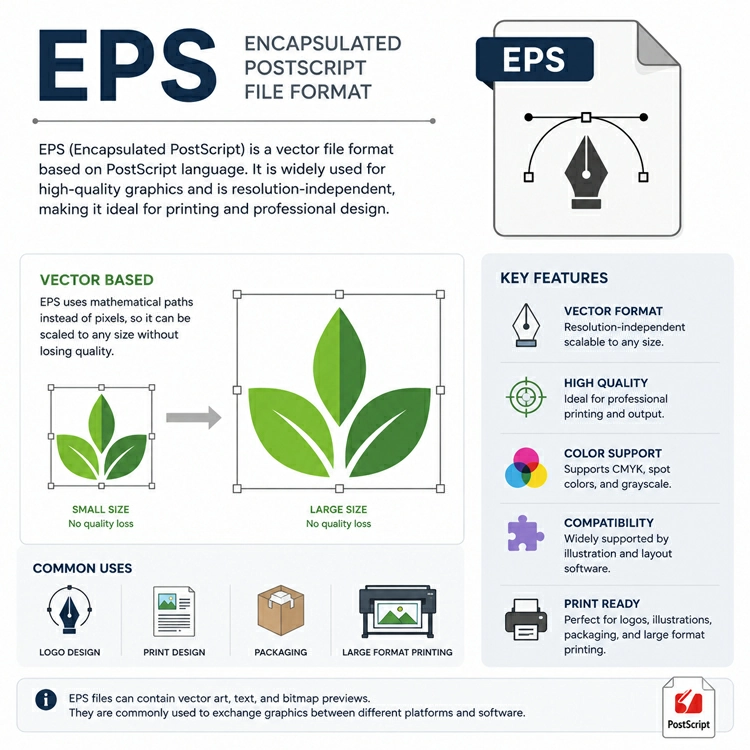
EPS (Encapsulated PostScript) is a versatile vector-based file format used in professional printing and clipping path workflows. It stores clipping paths as scalable vector data, ensuring precision, print compatibility, and seamless integration with design software, packaging, and prepress production environments.
What is EPS?
EPS (Encapsulated PostScript) is a vector file format based on PostScript that Adobe initially created. It is probably the oldest and most recognized image file format among the printing and designing industries.
EPS is versatile since it may include both vector and raster elements. This makes it mostly good for clipping path tasks.
Why it matters a lot for clipping paths
In the past, EPS has been the default format in the industry for image delivery with clipping paths for print workflows. The clipping path in an EPS file is represented as PostScript vector data. This means the clipping path is defined by mathematical equations, and so, the clipping path can be scaled infinitely without resulting in quality degradation.
Clipping path is stored as PostScript path or vector shape inside the EPS file. PostScript vector path or shape is completely compatible with printing and raster image processing (RiP) systems.
InDesign, QuarkXPress, Illustrator, or CorelDRAW are capable of opening the EPS image and automatically applying the clipping path without any further intervention required by the user
Offset printing and prepress workflows are fully compatible with the image
Transparency support
Compared to PSD or PNG, EPS’s native transparency is quite limited. Most of the time, PostScript Level 3 or PDF-based handling of EPS is required for true transparency. In the conventional EPS workflows, it is usually the clipping path and not the alpha channel that defines the visible portion of the image.
Technical Specification
- Can hold vector as well as raster data
- Supports color modes like CMYK, RGB, and spot colors
- Works with nearly all professional design software packages
- Ability to embed font and path data
- PostScript printers and RIP systems recognize it as a native format
Who uses EPS?
- Prepress and print professionals who still use legacy workflows
- Graphic designers who are working in environments with old software or specialized design software
- Illustrators who are producing and delivering artwork that has images embedded into it
- Packaging designers who need very accurate paths for die-cutting
Limitations
- Most of the time getting replaced by PDF in modern printing workflows
- Only supports a limited amount of transparency compared to new formats
- Can be considered a rather complex format to work with
Best Practice
EPS is to be used when you are dealing with older print processes or clients who have systems that can only handle such files. In general, PDF or TIFF with embedded paths have become the new standard and most of the modern print jobs are using these formats. That said, EPS still has its place in packaging, signage, and specialized pre-press areas.
Quick Comparison: Which Format Should You Use?
| Feature | PSD | PNG | TIFF |
EPS |
|
Embedded Clipping Path |
✅ Yes | ❌ No | ✅ Yes |
✅ Yes |
|
Transparency (Alpha) |
✅ Full | ✅ Full | ✅ Yes |
⚠️ Limited |
|
CMYK Support |
✅ Yes | ❌ No | ✅ Yes |
✅ Yes |
|
Web Compatible |
❌ No | ✅ Yes | ❌ No |
❌ No |
|
Print Ready |
✅ Yes | ⚠️ Limited | ✅ Yes |
✅ Yes |
|
Editable Layers |
✅ Yes | ❌ No | ⚠️ Limited |
❌ No |
| File Size | Large | Medium | Very Large |
Large |
| Best Use Case | Master/Edit File | Web/Digital | Print Production |
Legacy Print |
The Professional Workflow: Using All Four Together
In a real professional photo editing workflow, you never limit yourself to just one format- you use them in a planned way:
- Work in PSD– Create and fine-tune your clipping path. Make sure all the layers and paths remain editable. This is your original file.
- Export to TIFF– For print clients, save a flattened TIFF with the clipping path embedded. Use CMYK color mode.
- Export to PNG– For print clients, send a flattened TIFF that contains the clipping path. Operate in CMYK color mode.
- Export to EPS– For web and e-commerce, generate a high-resolution PNG with a transparent background.
Only if the client or print workflow absolutely demands it- packaging studios, sign printers, or legacy prepress systems
Final Thoughts
Knowing file formats is more than a technical issue it is a skill that professional photo editors have, while amateur retouchers don’t. A perfectly done clipping path can be totally wasted by saving it in a wrong format for the purpose.
- PSD supports everything to be editable and ‘live’.
- PNG allows your cutout to the web with the transparency kept.
- TIFF enables your path to be seen by the print professionals.
- EPS meets the rigorous, highly specialized needs of legacy and prepress print.
Become proficient at the four of them and learn how to decide which one to use and you will always provide works that are not only meeting, but also exceeding, professional standards. After all, great product photo editing is not simply how you cut. Rather, it is also how you deliver.
Related posts


Why Manual Clipping Path Gives Better Results