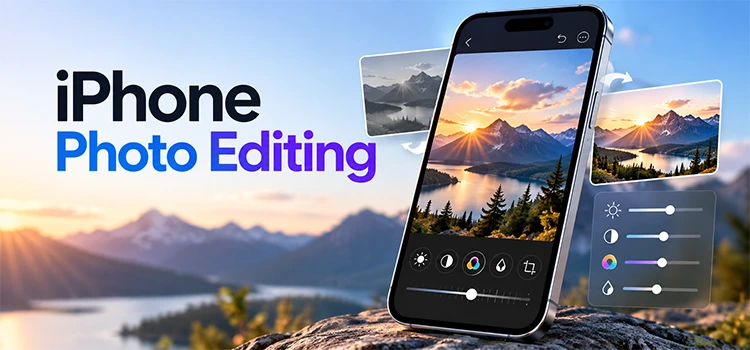
iPhone’s New Photo Editing Features

“Apple added three new photo editing tools to iPhone and Mac. Clean Up removes unwanted objects from photos. Extend adds more space around a photo using AI. Reframe changes the angle and crop of a photo. All three use Apple Intelligence and work for free right now.”
Apple took its time, but it finally added real AI photo editing tools to the Photos app. These tools work on iPhone and on Mac. They let you remove people from photos, expand the background, and even change the angle of a shot. Many photo editing services charge money for these exact features. Apple built them right into your phone. This article breaks down each tool, compares it to Photoshop, and explains what you need to know before you start editing.
What Is the Extend Feature on iPhone?
“Extend uses AI to add new background to a photo. It works when you crop a photo wider than the original frame. iPhone fills the empty space with generated content. The result looks smooth, but the final photo has lower resolution than the original.”
Extend sits inside the Photos app under Intelligent Tools. You open a photo, tap Crop, then pull the frame wider than the original image. iPhone fills in the missing parts using AI. The edges blend well. You can barely see where the real photo ends and the generated part begins. But there is a limit. iPhone only lets you extend a photo by about 25 percent. Once you use it, the option locks. You cannot extend the same photo again unless you reset it first.
How Does iPhone Extend Compare to Photoshop’s Generative Expand?
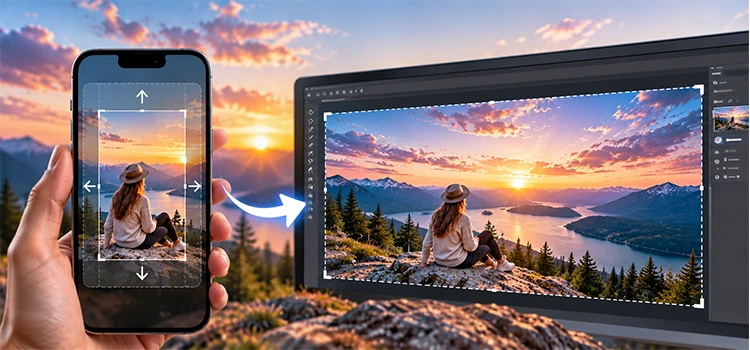
“iPhone keeps more detail in generated areas, even at lower resolution. Photoshop keeps higher resolution but often creates strange, blurry shapes. Photoshop struggles badly when it generates human legs or feet. iPhone handles these details better despite dropping overall image quality.”
This is where the comparison gets interesting. Photoshop’s Generative Expand works on the Creative Cloud Pro plan. It does not use credits on that plan, but the plan itself costs more money. When you expand a photo in Photoshop, you get higher resolution than iPhone gives you. iPhone drops a 24 megapixel photo down to about 12 megapixels after extending it. But resolution is not everything. When Photoshop tries to generate a person’s legs or feet, it often creates odd shapes that look nothing like real limbs. iPhone handles the same task with much cleaner results. You still see some blur if you zoom in close, but from a normal viewing distance, the fake parts are hard to spot.
What Does the Clean Up Tool Do?
“Clean Up removes unwanted people or objects from a photo. It keeps the original resolution of the photo. You can paint over items manually or let iPhone detect distractions automatically. High quality mode gives the best results but may need internet access.”
Clean Up works differently from Extend. Instead of adding new content, it removes things you do not want in the frame. You tap Clean Up inside Intelligent Tools, then choose Fast, High Quality, or Auto. Fast mode uses an older method and works without internet. High Quality mode uses newer AI and gives better results. Once you pick a mode, you paint over the object you want gone. iPhone also scans photos automatically and highlights likely distractions. You just tap them to remove them. The tool even detects and removes shadows tied to the object. Unlike Extend, Clean Up keeps the exact same resolution as your original photo.
Is Clean Up Better Than Photoshop’s Remove Tool?

“Clean Up on iPhone often produces cleaner results than Photoshop’s remove tool. Both tools avoid using credits during generative removal. iPhone tends to blend edges more naturally around removed objects. Photoshop sometimes leaves visible traces or odd curves near the edited area.”
Testing both tools side by side shows a clear pattern. Photoshop’s Remove tool uses generative AI and does not cost credits, which is a plus. It does a solid job overall. But when you zoom in, iPhone’s version usually looks cleaner and more natural. Photoshop sometimes leaves a slightly curved line where a straight edge should be. iPhone keeps edges straighter and blends backgrounds better. This does not mean Photoshop fails. It means iPhone now competes directly with tools that professional photo editing services have used for years.
Can You Use These Features on a Mac?
“Yes, these features work on Mac through the Photos app. You need macOS 27 or later to access them. Import or drag photos into the app, then click Edit. All three tools appear under the same Intelligent Tools menu.”
Mac users get the same three tools as iPhone users. Open the Photos app on Mac, import your images, and click Edit. Under Tools, you will find Clean Up, Extend, and Reframe, just like on iPhone. The Mac version adds extra controls, like a resizable brush for the Clean Up tool. This gives you more precision than tapping on a small phone screen. Results stay consistent between devices. A photo cleaned up on iPhone looks nearly identical to the same photo cleaned up on Mac.
What Is the Reframe Tool and How Does It Work?
“Reframe lets you change the angle of a photo after taking it. You can pan, tilt, and zoom using AI generated content. Photoshop has no direct equivalent to this feature. Faces can sometimes warp slightly during extreme angle changes.”
Reframe is the most unique tool of the three. Photoshop offers a rotate object feature, but nothing matches what Reframe does. You open a photo, tap Reframe, and adjust the angle using sliders for horizontal and vertical movement. You can zoom in or out and pan across the frame. iPhone generates new image content to fill the gaps created by the angle change. The results look smooth in most photos. Text in the background may look garbled, and faces can warp if you push the angle too far. Still, the overall output stays usable for everyday photos.
Are These iPhone Photo Editing Features Free?
“Apple’s documentation confirms these features are free for now. Daily usage limits apply, though Apple has not shared exact numbers. Apple states that expanded access will require a fee in the future. Free access may become limited once that fee starts.”
Apple published documentation covering Clean Up, Extend, and Reframe. The fine print states that features relying on server side models come with daily usage limits. Apple does not say how many edits you get per day. It also confirms that expanded access to these features will cost money at some point in the future. Right now, you can use all three tools without paying anything. But this will likely change. If you rely on these tools often, keep an eye on future updates from Apple about pricing.
Should You Choose iPhone or Photoshop for Photo Editing?
“Choose iPhone for quick, free edits with clean results on lower resolution. Choose Photoshop for professional projects that need high resolution output. iPhone works better for casual photos and social media posts. Photoshop still wins for large prints and commercial work.”
Your choice depends on what you need. If you want fast, free edits that look good on a phone screen or social media, iPhone’s tools do the job well. They often produce more natural results than Photoshop, especially for object removal. But if you need high resolution files for print or professional use, Photoshop still has an edge in raw output quality. Many businesses that offer photo editing services will likely start blending both tools, using iPhone for quick fixes and Photoshop for detailed, high resolution work.
Frequently Asked Questions
-
What are the three new iPhone photo editing features?
The three new features are Clean Up, Extend, and Reframe. Clean Up removes unwanted people or objects from a photo. Extend adds new background space using AI when you crop wider than the original frame. Reframe changes the camera angle of a photo after you already took it, using generated content to fill any gaps.
-
Do I need to update my iPhone to use these tools?
Yes, you need a recent version of iOS that supports Apple Intelligence. These features run through the Photos app under a section called Intelligent Tools. If you do not see this option, check your software update settings and install the latest available version for your device model.
-
Does the Extend feature reduce photo quality?
Yes, it does. When you use Extend, iPhone often reduces the resolution of the final photo compared to the original file. A 24 megapixel photo can drop to around 12 megapixels after extending. The quality still looks sharp on screens and phones, but it may not hold up well for large prints.
-
Can I extend a photo more than once?
No, not directly. Once you use Extend on a photo, the option locks and will not let you extend it further. You need to reset the edit first before applying Extend again. Saving the photo and reopening it as a workaround is possible, but Apple does not support this as an official feature.
-
Is Clean Up better than Photoshop’s remove tool?
In many test cases, yes. Clean Up on iPhone tends to blend edges more smoothly and avoids leaving strange curves or shapes behind. Photoshop’s remove tool still performs well overall, but it sometimes leaves small visual artifacts near the edited area that Clean Up avoids in similar situations.
-
Can these features run on a Mac computer?
Yes, Mac users get the same three tools through the Photos app, as long as they update to macOS 27 or later. The Mac version includes extra controls, such as an adjustable brush size for Clean Up, which gives more precision than editing on a small phone screen.
-
Are these iPhone editing tools completely free to use?
For now, yes, they are free. Apple’s own documentation confirms this but also mentions daily usage limits for features that rely on server side processing. Apple has stated that expanded access will require a fee in the future, though exact pricing and limits have not been announced yet.
-
Does Reframe work well on every type of photo?
Reframe works well on most photos, especially landscapes and general scenes. It struggles slightly with human faces during extreme angle changes, sometimes causing warping. Background text can also appear garbled after a big adjustment. For subtle angle changes, the results usually stay clean and natural looking.
-
Will these tools replace professional photo editing services?
Not entirely. These tools handle quick, casual edits very well and often outperform Photoshop in specific tasks like object removal. But professional photo editing services still offer higher resolution output, advanced retouching, and specialized skills that go beyond what an automatic AI tool inside a phone app can currently provide.
-
How do I access these tools inside the Photos app?
Open any photo in the Photos app and tap Edit. Look for Intelligent Tools, where you will find Clean Up, Extend, and Reframe listed together. Each tool has its own controls and settings. On Mac, the same tools appear under a Tools menu after you click Edit on a photo.
Conclusion
Apple finally caught up with a set of AI photo editing tools that actually work well. Clean Up removes distractions cleanly. Extend adds background space with surprisingly good detail. Reframe changes angles in a way Photoshop cannot fully match. Resolution takes a hit with Extend, and daily limits apply to all three tools. But for free, built in features, this is impressive work. Try them out on your own photos and see how they compare to what you already use.